


Tutorial 3 of 4
Testing: Infinite Test Builder
Learn how to create your first test template and save it for future use
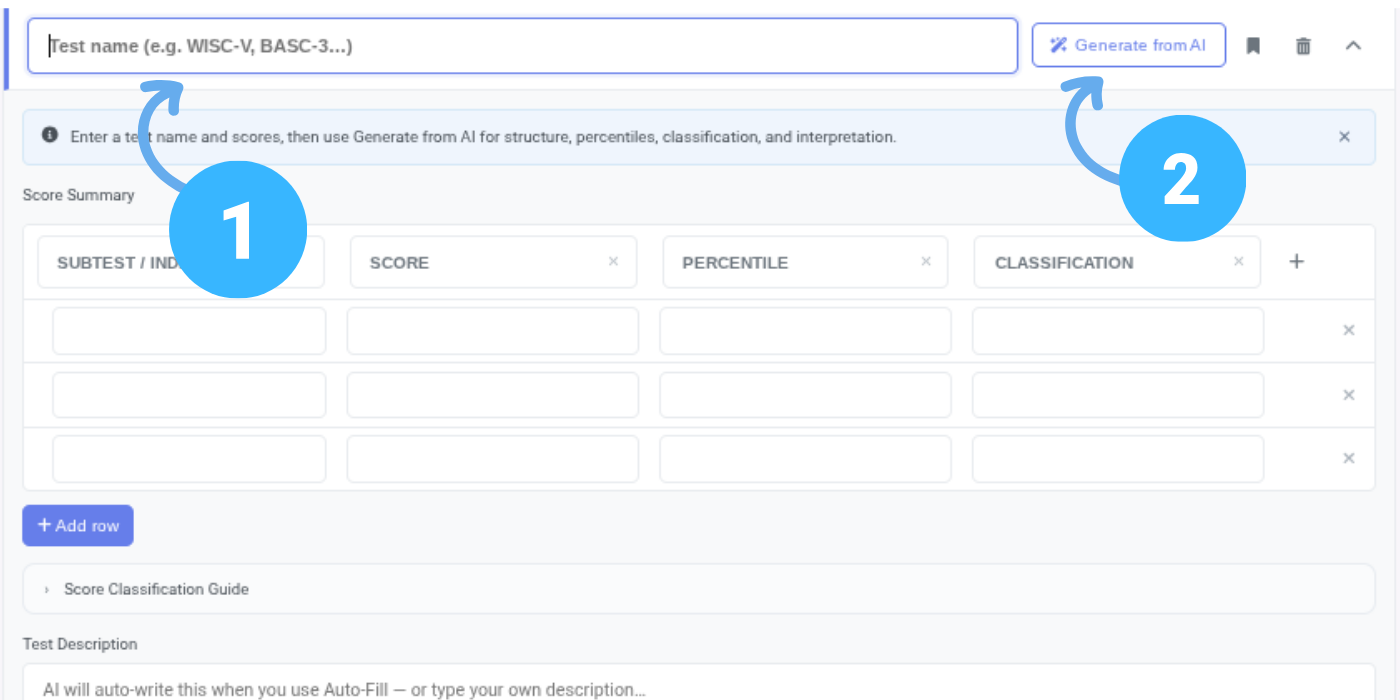
Enter a Test Name

Type the name of the assessment you would like to use and click Generate from AI.
The Infinite Test Generator will create a customizable testing template, including subtests, indexes, descriptions, and score classifications when applicable.
Customize Your Template

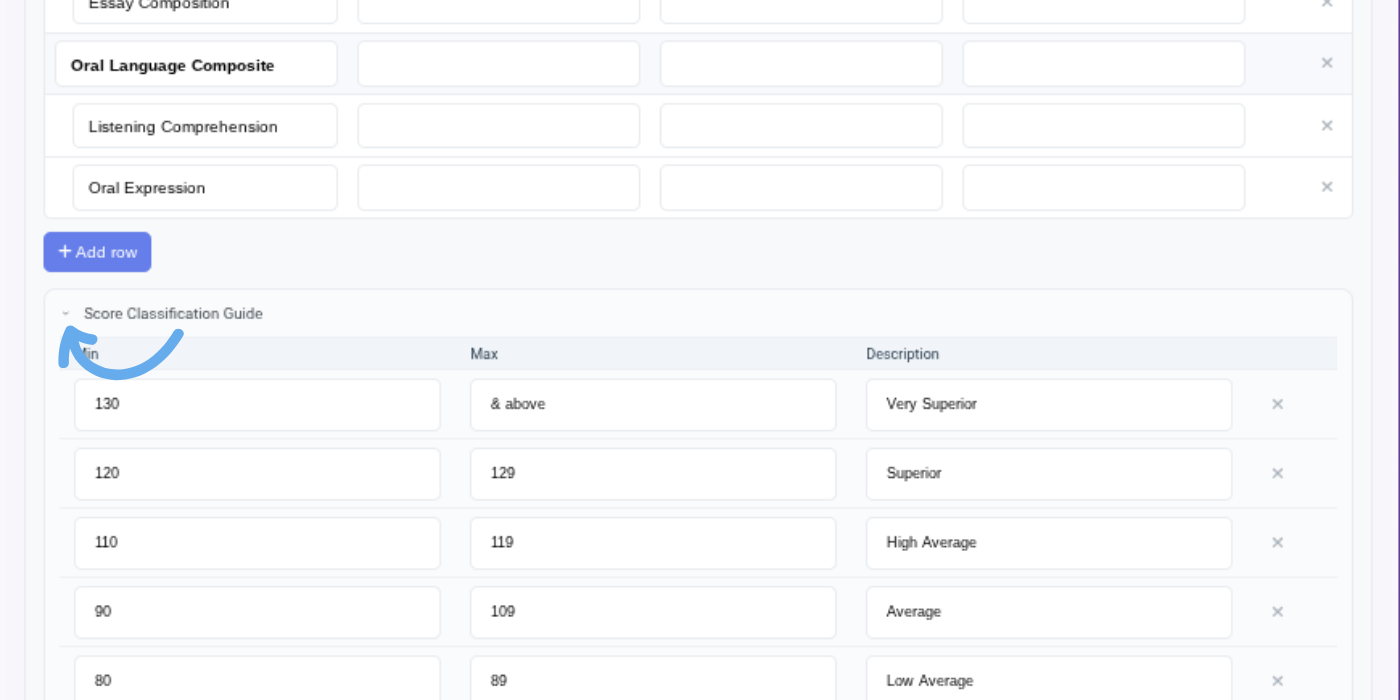
Review the generated template and make any desired changes.
You can:
Edit test descriptions
Add or remove subtests
Add or remove indexes (e.g., Visual Spatial Index, Verbal Comprehension Index)
Modify score classifications
Enter Scores

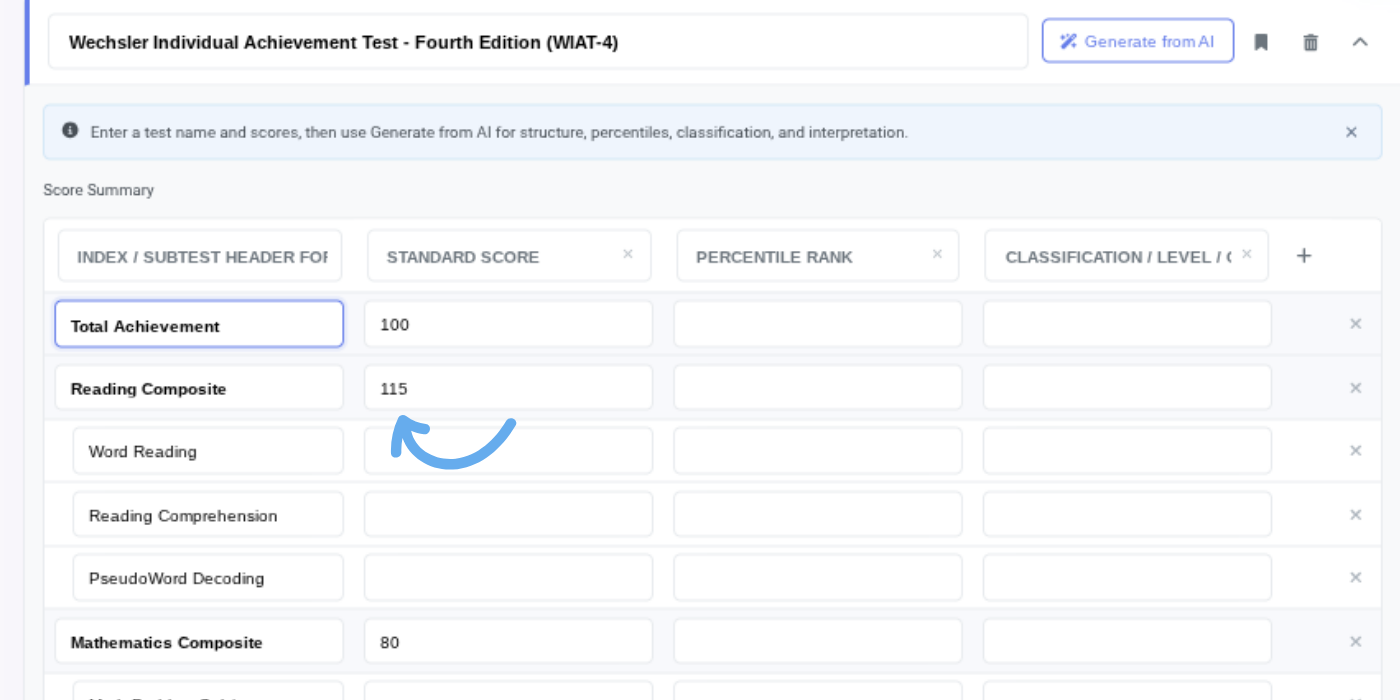
Enter the student's scores directly into the generated table.
Once scores have been entered, click Generate from AI again to automatically create testing narratives, score interpretations, classifications, and percentile information.
Save Your Template

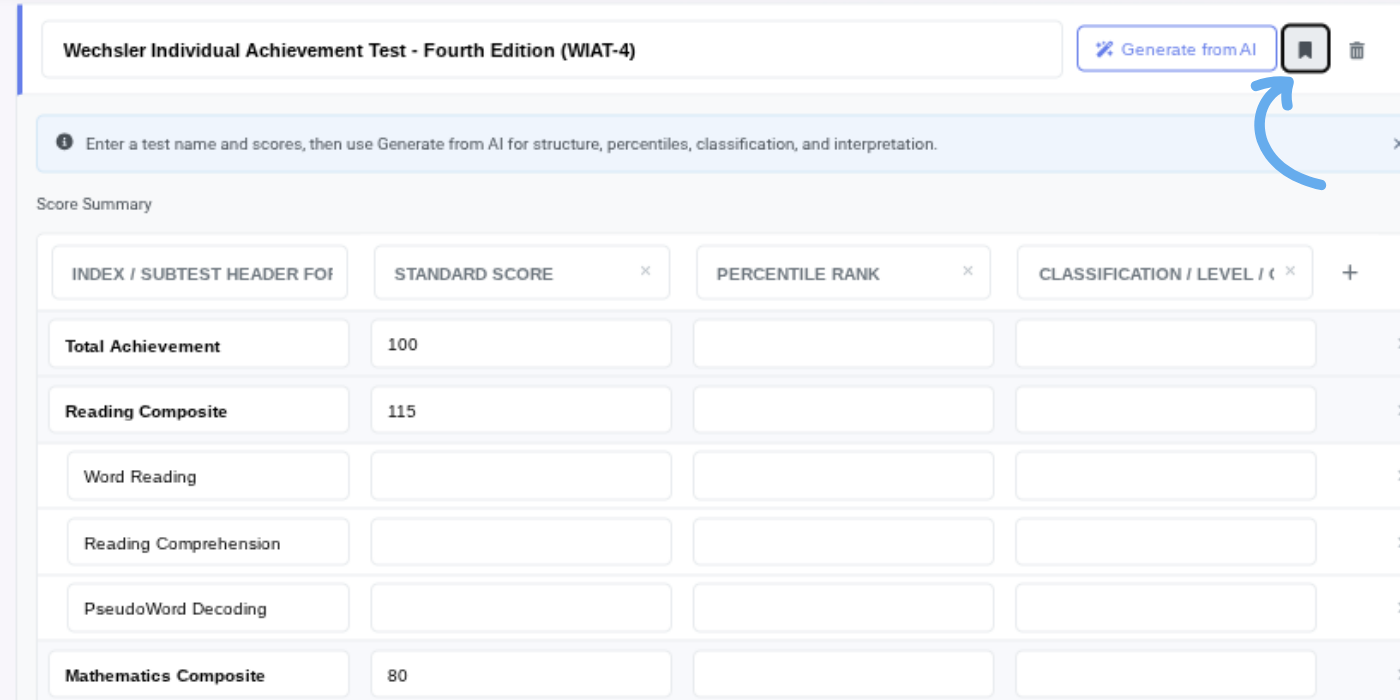
If you would like to reuse the assessment in the future, click Save Template (bookmark icon).
Templates are currently saved within the report in which they were created and can be reused throughout that report.
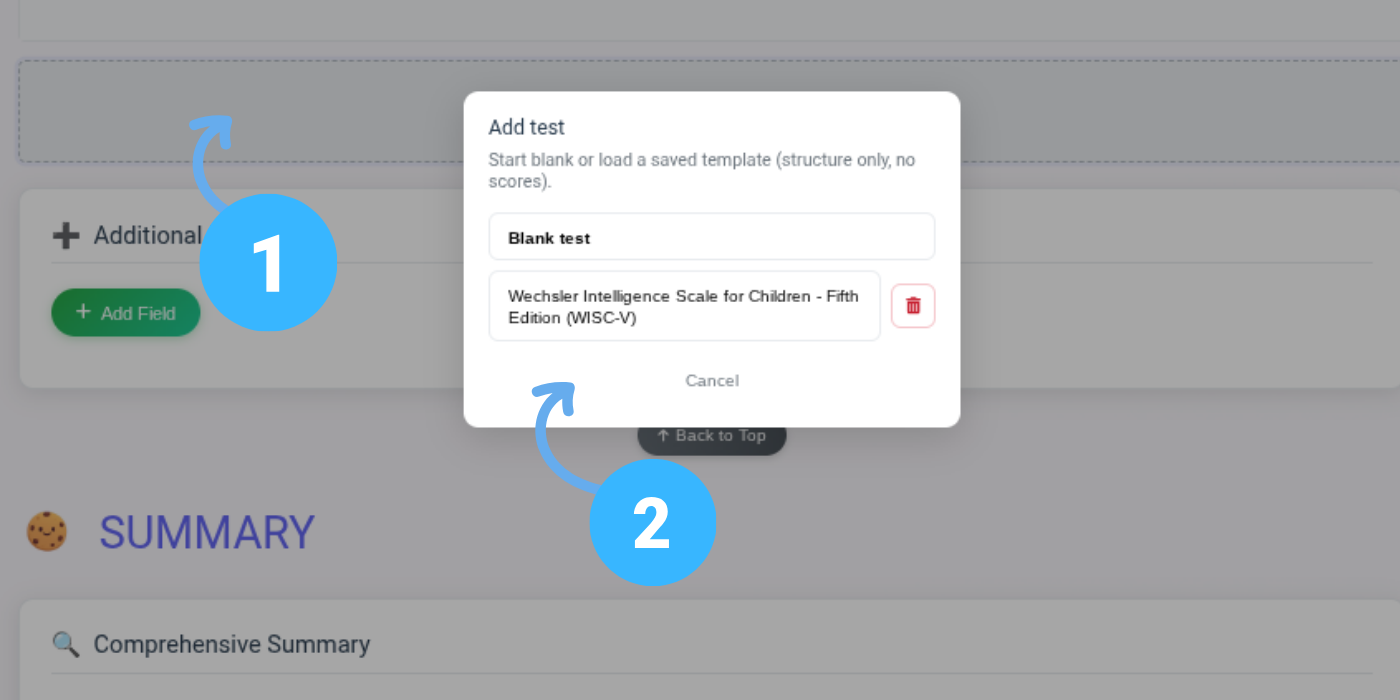
Add Additional Templates

Click Add Another Test to include additional assessments within the same report.
You can either:
Select a previously generated template
Create a new assessment using the Infinite Test Generator

CHIP’S TIPS
The more you customize your templates, the more personalized your future reports become. More excited updates are coming soon!

Ready for the Next Step?
Tutorial 4: Exporting to Word
Learn how to export to Word and fill in demographic information.